Worklenz
Iniciar sesión
ES
Back to changelog
v3.4Latest

GitHub Integration, Advanced Reporting & Fixes

NewImprovementFix
Worklenz GitHub Integration, Advanced Reporting & Fixes release screenshot

Worklenz v3.4 adds a GitHub integration for Software projects, showing branches, pull requests, and commits on issues with automatic status updates. It also adds advanced reporting and analytics, with Dashboards, Velocity, Cumulative Flow, SLA Tracking, Time in Status, and report scheduling. Task comments get a rich text editor, time logs can cross midnight, saved views keep your filters, and Selection custom fields gain dependent options. Subtasks can move between parent tasks, and the Client Portal gains client deletion and multiple members per client. Fixes cover HTML-encoded text, attachments, real-time updates, dark mode, and Software project sprints.

Features

Reports

  • Advanced reporting and analytics
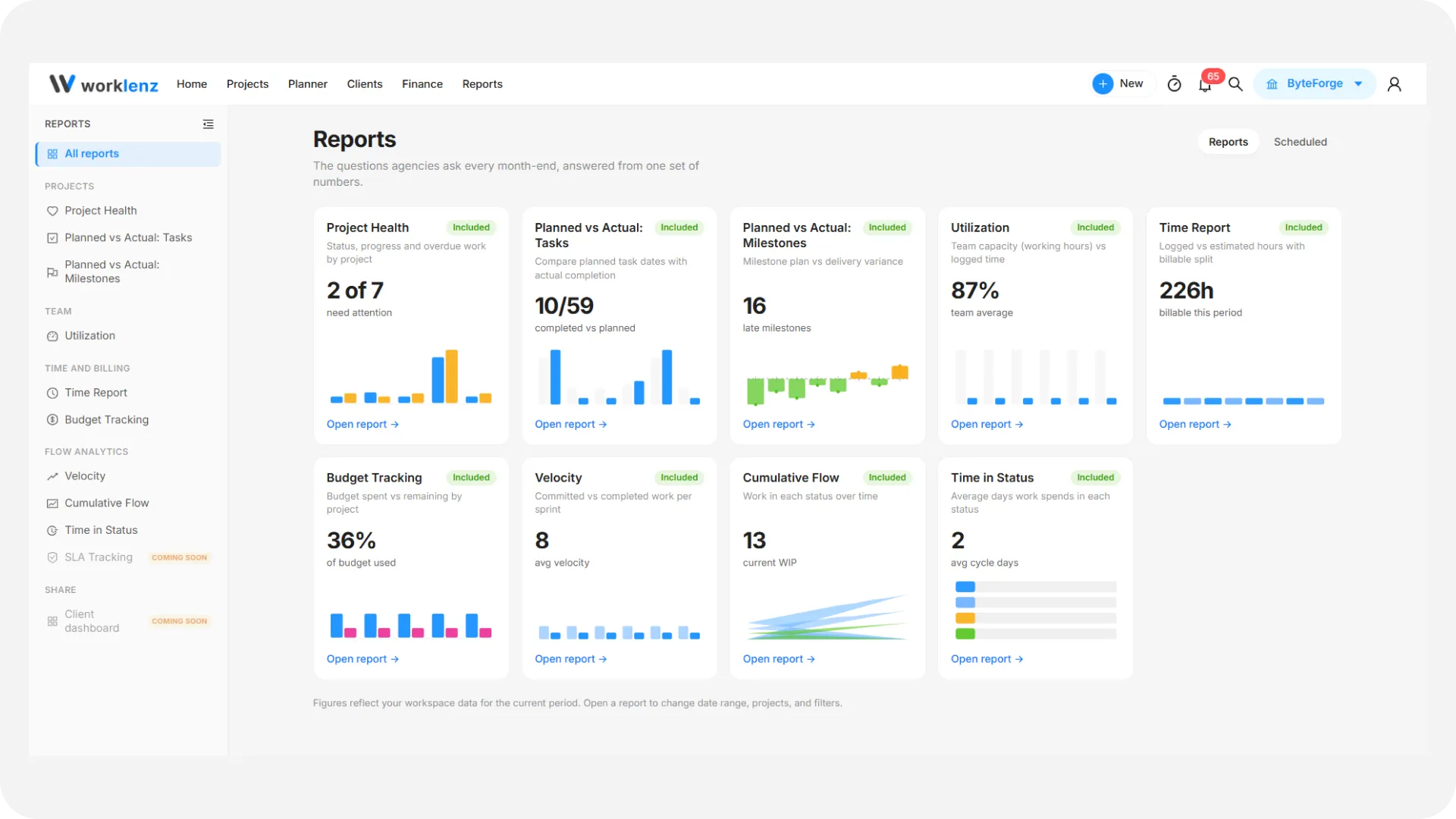
    A new Reporting & Analytics group in Reports adds Dashboards, Velocity Charts, Cumulative Flow Diagrams and Time in Status reports. Track sprint progress and workflow bottlenecks, save your filters as custom reports, and send reports to stakeholders on a schedule.
    Advanced reporting and analytics
    How to use:
    1. Open Reports and find the Reporting & Analytics group below Time Reports
    2. Open Velocity, Cumulative Flow or Time in Status and filter by project and date range
    3. Choose Save as template to keep the filter set as a custom report. You can share it with the workspace or set it as your default
    4. Open Dashboards to group reports on one page, or set a report to send on a schedule

Integrations

  • GitHub integration for Software projects
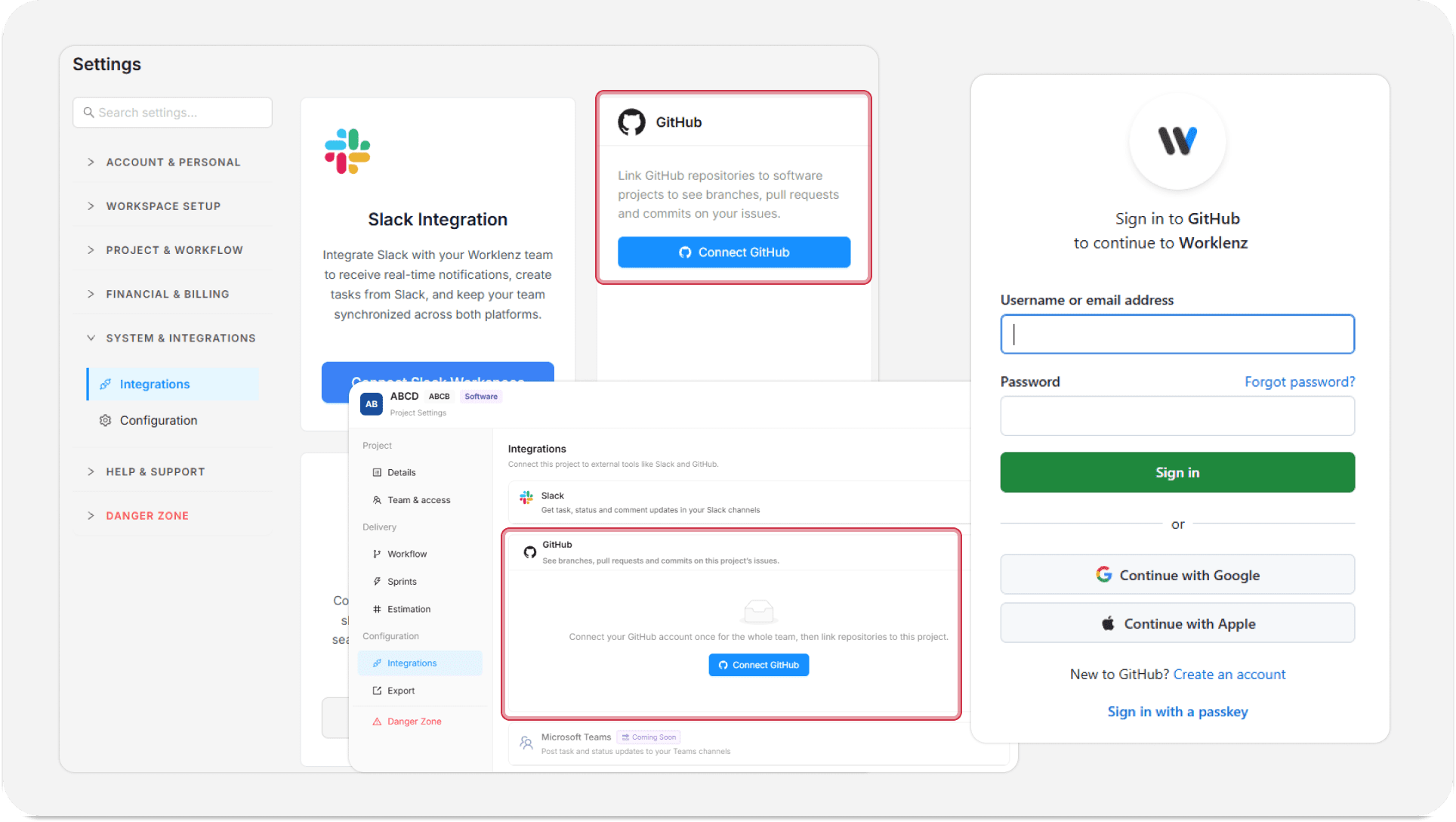
    Connect GitHub to your workspace and link repositories to a Software project. Branches, pull requests, and commits that mention an issue key show up on that issue, and issue status can update automatically as work moves through GitHub. You can also create branches from an issue and import GitHub issues into your backlog.
    GitHub integration for Software projects
    How to use:
    1. Go to Settings > Integrations and choose Connect GitHub. Only team owners and admins can connect
    2. Open a Software project, go to Project Settings > Integrations, and link a repository
    3. Include an issue key in a branch name, commit message, or pull request title. The activity appears under Development in the task drawer
    4. Under Status automation, choose which status an issue moves to when a branch is created, a pull request opens, or a pull request merges
    5. Optional: use Create branch in the task drawer, or Import issues to bring open GitHub issues into the project

Projects

  • Saved views for Reports and Project Views
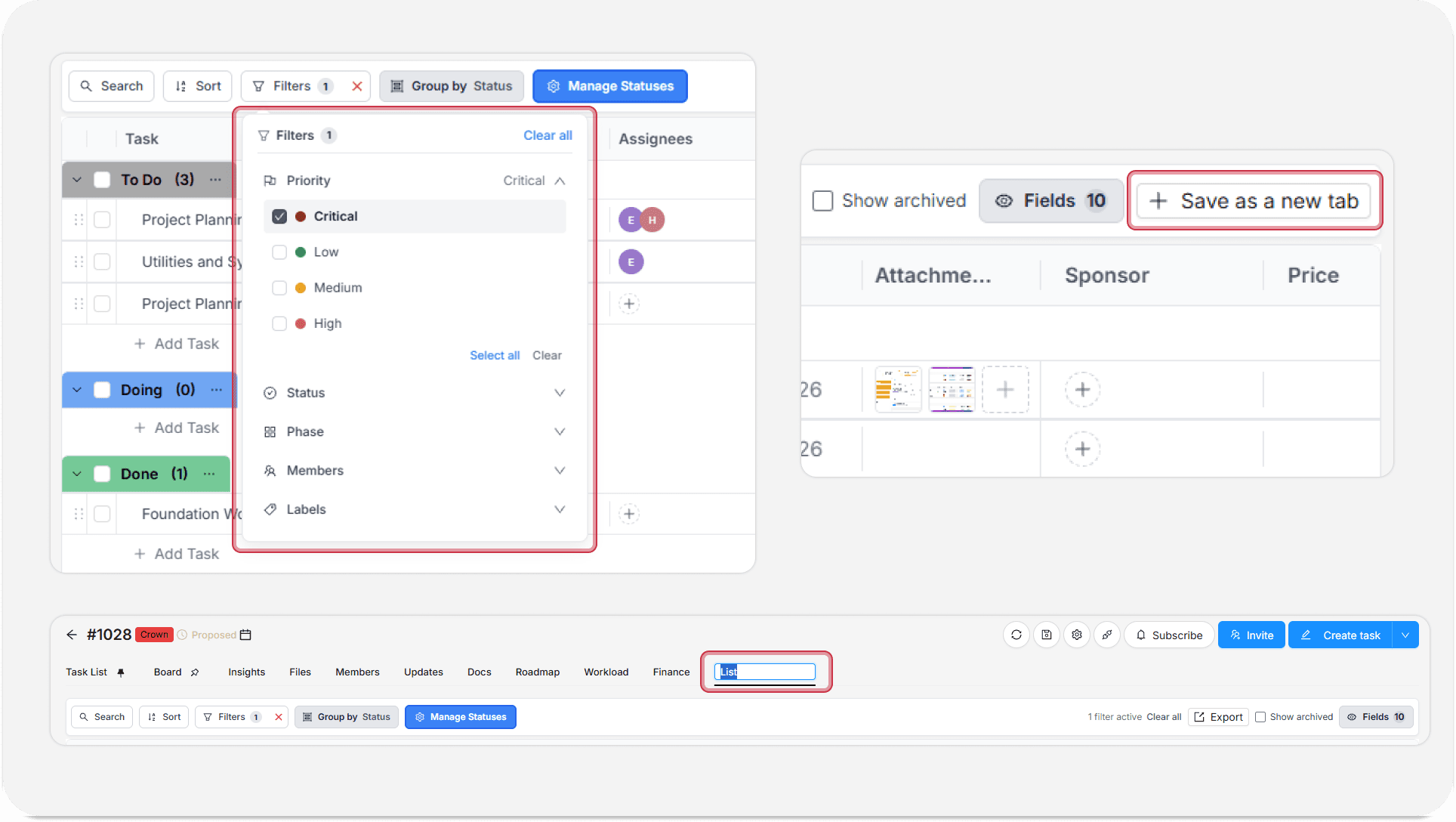
    Filter a project's task list by status, assignee, priority, or other fields, then save that filter set as a new tab. In Reports, save a filter set as a named view that you or your team can load later. You stop rebuilding the same filters every session.
    Saved views for Reports and Project Views
    How to use:
    1. Open a project and apply filters in the task list
    2. Choose Save as new tab and name it. Click the tab any time to bring those filters back
    3. In a Reporting & Analytics report, apply filters and choose Save as template
    4. Load a saved view from My templates. Shared views also appear for team members with reporting access

Task Comments

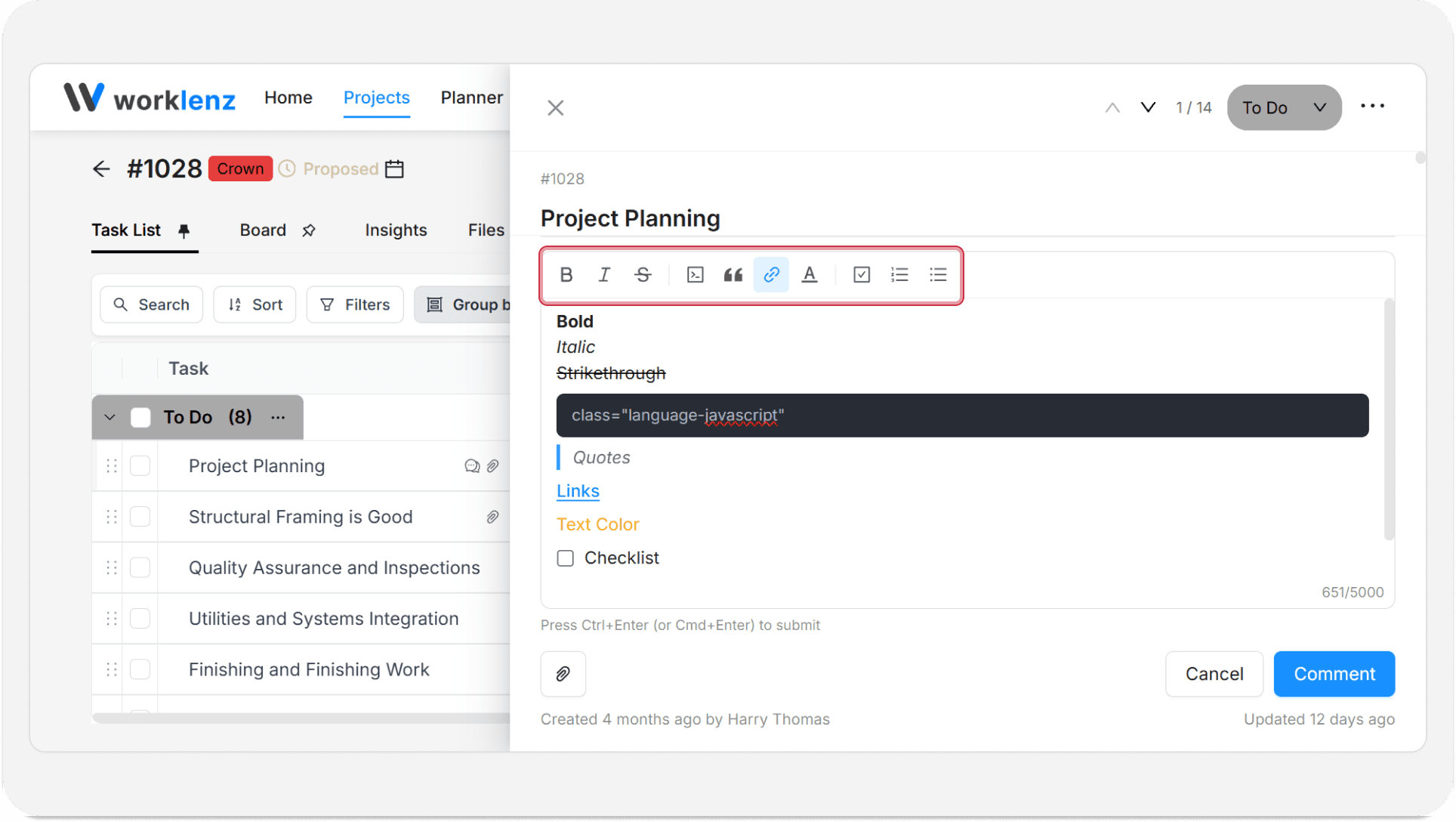
  • Rich text editor for comments
    Format task comments with bold, italic, strikethrough, code blocks, quotes, links, text colors, checklists, and numbered or bulleted lists. Links in comments are easier to read and add.
    Rich text editor for comments
    How to use:
    1. Open a task and go to the Comments section
    2. Use the toolbar to format your text. Select text and use the Link button to add a URL
    3. Add a checklist or list, then post the comment. The formatting stays when the comment is displayed

Task List

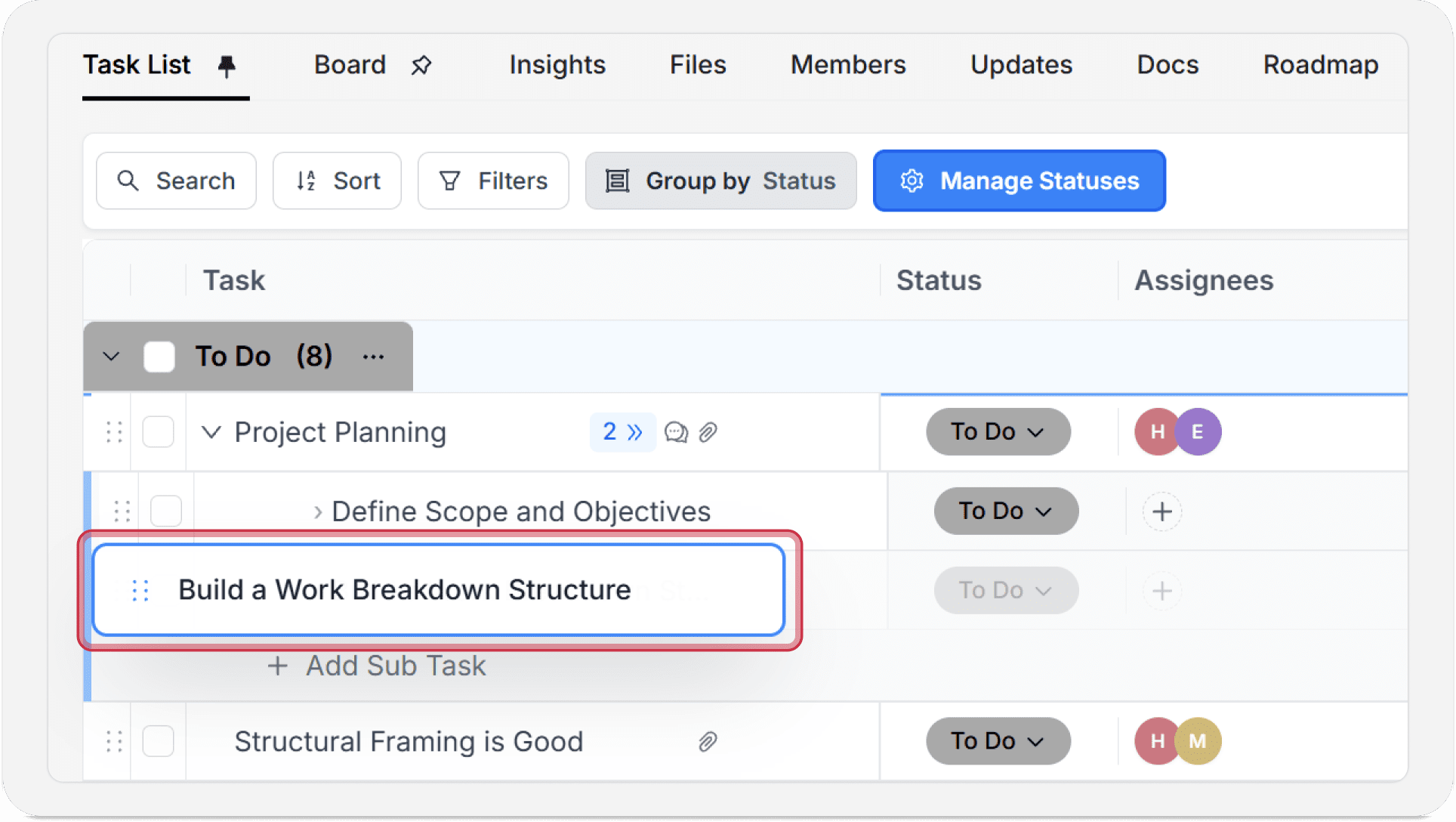
  • Move subtasks between parent tasks
    Move an existing subtask to a different parent task in the same project. The subtask keeps its title, description, assignee, due date, status, and logged hours.
    Move subtasks between parent tasks
    How to use:
    1. Open a project that has tasks with subtasks
    2. Select a subtask and choose to move it
    3. Pick the new parent task. The subtask now appears under it

Custom Fields

  • Cascading Selection fields
    Make one Selection field's options depend on another field's value, such as Department then Team. Users can only pick valid combinations, and the same rules apply in bulk editing, filtering, grouping, and CSV imports. Available on Business plans.
    How to use:
    1. Open a project with two Selection custom fields
    2. Set the second field's options to depend on the first field
    3. Pick a value in the first field. The second field shows only the matching options

Client Portal

  • Delete clients from the Client Portal
    Remove clients who no longer need portal access. A confirmation popup prevents accidental deletion.
    How to use:
    1. Go to Client Portal and open Clients
    2. Open the options for a client and choose Delete
    3. Confirm. The client list updates right away
  • Multiple members per client
    Invite more than one person from the same client company to the Client Portal, so each contact gets their own access under one client record.
    How to use:
    1. Go to Client Portal and open Clients
    2. Open a client and choose Invite to Portal
    3. Invite each contact from that company

✨Improvements

Task List & Drawer

  • Time log entries can now cross midnight. Set a separate start date/time and end date/time, so overnight work needs one entry instead of two. Entries that cross midnight show an Overnight badge
  • Clicking a comment in the Latest Comment column opens the task drawer and scrolls to that comment
  • Task status names now show a maximum character limit before you save
  • Admins who create a project are added to it as members automatically
  • In Software projects, you can change a task's type from the task drawer

Members & Settings

  • You can create a new Job Title from the Project Members, Homepage My Team, and Rate Card job title dropdowns without going to Settings
  • The Users page in Admin Center loads faster

Client Portal

  • Branding logos can be cropped to a square when you upload them
  • Email notifications are off by default for Client Portal users, who can turn them on in notification settings

🐞Fixes

  • Fixed file upload failing in the Admin Client Portal chat
  • Fixed task attachment downloads in the Client Portal redirecting to the home page
  • Fixed task names with quotes or special characters showing as HTML-encoded text
  • Fixed HTML-encoded characters such as apostrophes and ampersands appearing in displayed text
  • Fixed project names with special characters showing HTML encoding in the Search Project dropdown
  • Fixed project names containing > or < displaying incorrectly in This Week's Priority
  • Fixed the Client Portal edit drawer staying open after updating client details
  • Fixed both Client Portal and Clients staying highlighted in the top navigation
  • Fixed a success message appearing when creating a Client Portal account with a duplicate email
  • Fixed inconsistent capitalization of client company names on the Clients page
  • Fixed notification emails showing the Worklenz logo instead of the organization logo
  • Fixed US holiday auto-sync not adding holidays to the calendar
  • Fixed Assign Practice and Assign Department buttons missing during bulk assign of team members
  • Fixed label text and color looking lighter in the Label Filter dropdown
  • Fixed the assignee avatar not always appearing after a first assignment in Board view
  • Fixed the Task Attachment column not updating in real time after an upload
  • Fixed new comments not appearing in the Latest column in real time
  • Fixed an unknown error when setting a start date for multiple tasks
  • Fixed the project name displaying incorrectly in the Add Task popup on the Log Time page
  • Fixed an error when reordering statuses by drag and drop in the Kanban board
  • Fixed members seeing a No Permission message in Custom Columns settings after creating a custom column in a Software project
  • Fixed task description formatting such as headings not being preserved after saving
  • Fixed approvals not showing for client members in the Client Portal
  • Fixed attachments disappearing after upload to a Client Portal request
  • Fixed the Log Time page layout breaking with long project or task names
  • Fixed poor text contrast in the Client Portal in dark mode
  • Fixed poor text contrast in the task list Status column in dark mode
  • Fixed previously uploaded task attachments not showing on first load
  • Fixed subtasks missing from Reports charts in Software projects
  • Fixed assignee avatars overflowing the task card in Software project Board view
  • Fixed Custom Date Range silently swapping the dates when the end date is before the start date
  • Fixed the invoice note showing raw HTML tags in downloaded invoices
  • Fixed the close button overlapping the scrollbar in the Client View popup
  • Fixed the Items per Page setting not applying in Profitability and Budgets
  • Fixed duplicate comments being created when pressing Enter several times
  • Fixed a renamed task not updating until the page was refreshed
  • Fixed the Open Task button in the copy-task message being hidden in dark mode until hover
  • Fixed deleted tasks staying in the Roadmap until a refresh
  • Fixed mentioned user names showing a duplicated highlight in Updates
  • Fixed the task drawer status button growing wider with long status names
  • Fixed project changes not appearing in real time for other team members
  • Fixed Project Managers with the Member role being unable to create tasks
  • Fixed Members and Project Managers being unable to upload attachments because of a network error
  • Fixed priority sorting using alphabetical order in the Recently Logged table
  • Fixed priority sorting using alphabetical order in the Reports Projects table
  • Fixed duplicate success messages when saving Client Portal settings
  • Fixed the project count showing None Assigned for Client Admins in the Client Users table
  • Fixed the date picker overlapping the taskbar in Safari
  • Fixed quote and invoice downloads failing with a PDF generation error
  • Fixed the default Backlog name being impossible to change in Software projects
  • Fixed the Plan Sprint button doing nothing in Software projects
  • Fixed the Create Sprint option missing from the Backlog view
  • Fixed sprint name and dates not being editable from the sprint pane
  • Fixed automatically scheduled sprint dates overlapping the previous sprint
  • Fixed task assignments not updating in real time in the Planner
  • Fixed the status button being too wide in Software project issues
  • Fixed the hours unit label in Planner working hours being hard to read in dark mode