
How to implement the Eisenhower matrix in Worklenz

If you run an agency or manage multiple projects at once, you already know that not every task on your list carries the same weight. A client revision request landing in your inbox at 9 AM feels urgent. So does a team member pinging you about a delayed asset. But if you stop and actually look at what moves the project forward, those two things might not deserve equal attention.
That is exactly the problem the Eisenhower Matrix was built to solve.
What is the Eisenhower matrix?
The Eisenhower Matrix, also called the Urgent-Important Matrix, is a simple 2x2 grid that splits your tasks into four categories based on two questions: Is this urgent? Is this important?
The four quadrants work like this:
- Do - Urgent and Important. Handle these now.
- Schedule - Important but Not Urgent. Plan a time for these.
- Delegate - Urgent but Not Important. Pass these to someone else.
- Eliminate - Not Urgent, Not Important. Drop them.
For agencies managing client work, retainers, and internal projects at the same time, this framework cuts through the noise quickly. A bug on a live client site is urgent and important. Writing next quarter’s internal newsletter is neither.
Quick test before you start: If you want to explore the Eisenhower Matrix without setting up a full project, try the Worklenz Eisenhower free tool. It is a fast way to see how the quadrants feel with your actual tasks before you commit to a workflow inside Worklenz.
Setting it up in Worklenz
Worklenz does not have a built-in Eisenhower Matrix view, but its existing features map to the framework very cleanly. Here is how to build it step by step.
Step 1: List all your tasks
Start by adding everything you need to work on into your project task list. Do not filter yet. Deliverables, client feedback items, internal reviews, bug fixes, team check-ins, get them all in.
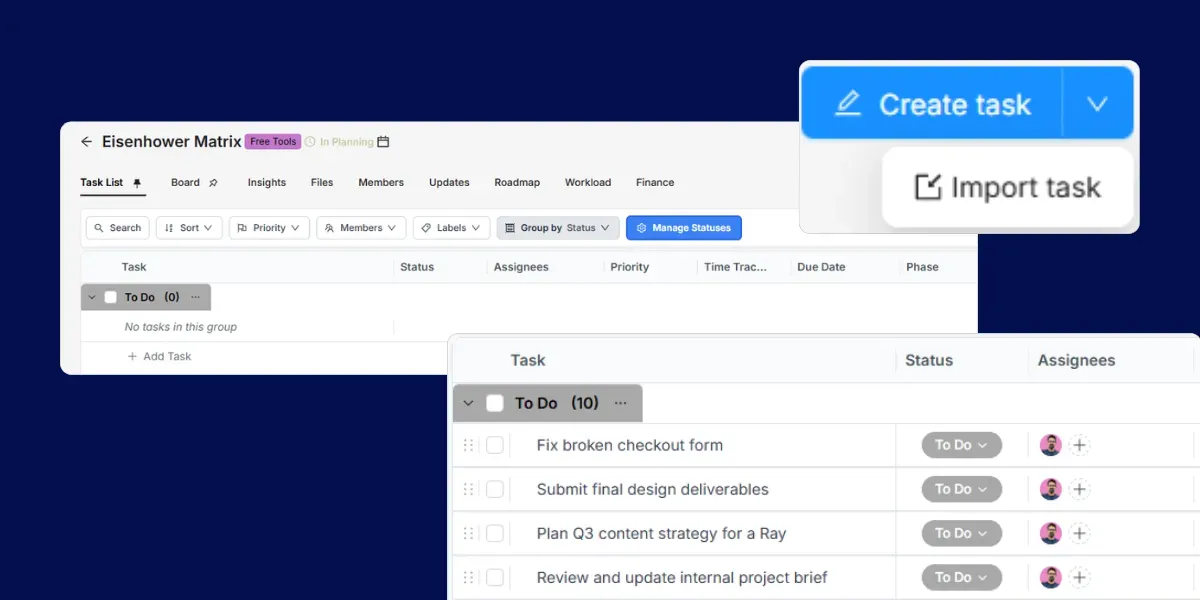
Step 2: Set priority on each task
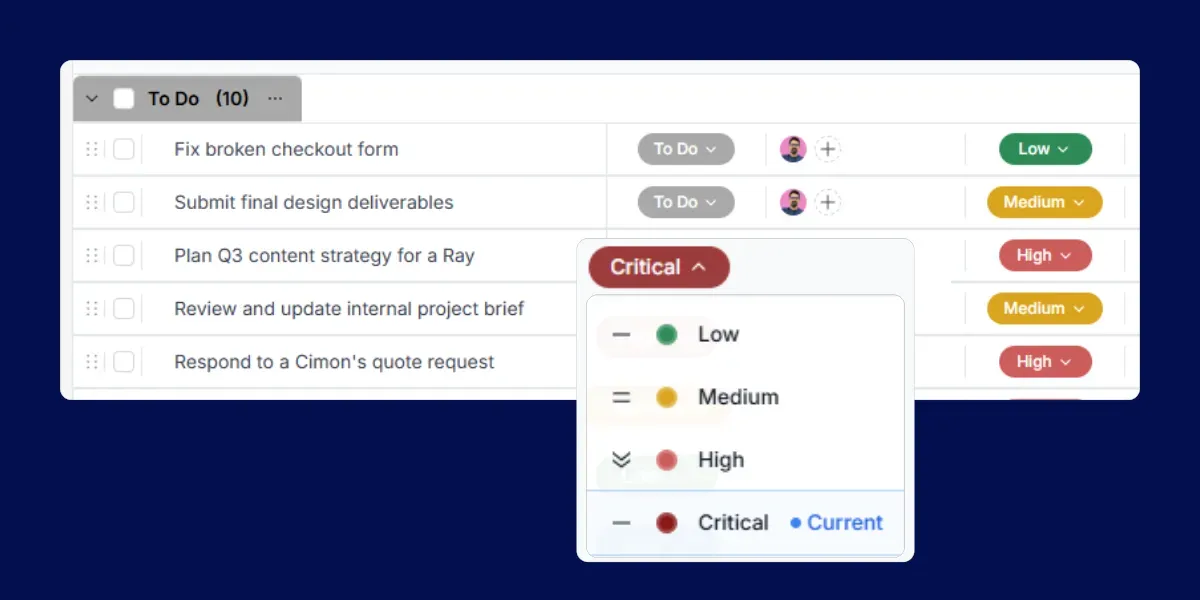
Worklenz now supports four priority levels: Critical, High, Medium, and Low. Use these to reflect both urgency and importance, which maps directly onto the Eisenhower quadrants.
Here is how to think about each level:
- Critical - Needs immediate attention. Urgent and important. These belong in the Do quadrant.
- High - Important work that has a clear deadline but is not on fire yet. These belong in the Schedule quadrant.
- Medium - Urgent in feel but not necessarily driving the project outcome. These belong in the Delegate quadrant.
- Low - Neither pressing nor high-impact. These belong in the Eliminate quadrant.
With four priority levels, the priority field now doubles as your matrix signal. Once a task has a priority, you already know which quadrant it falls into before you even assign a phase.
This priority field becomes your “Urgent vs Not Urgent / Important vs Not Important” axis in the matrix.
Step 3: Use phases as your matrix quadrants
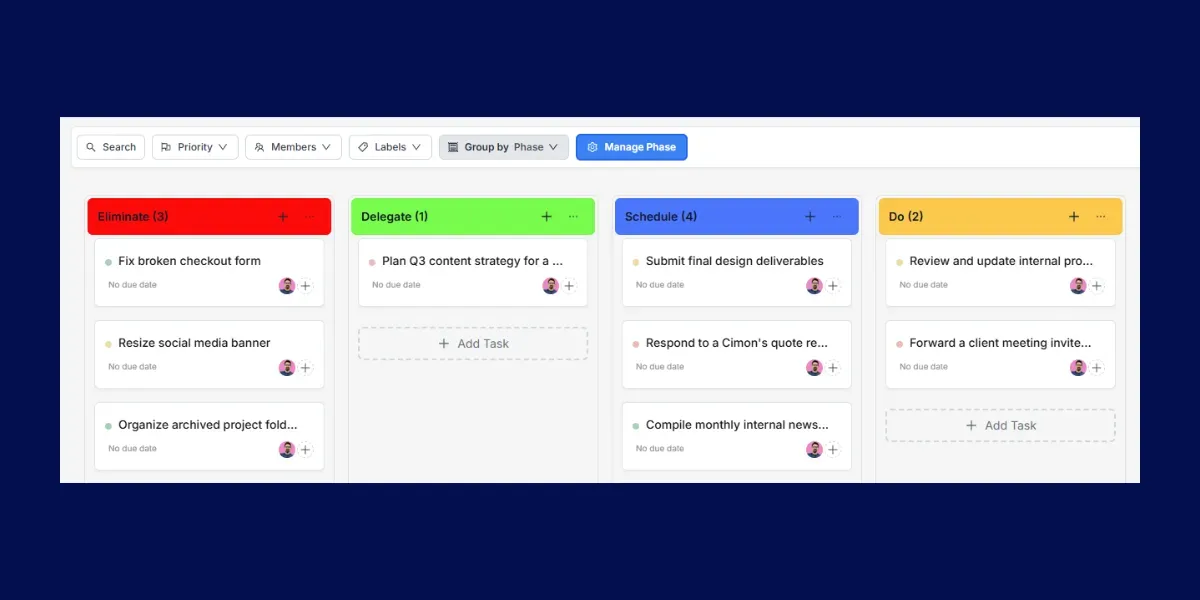
This is the key step. In Worklenz, the Phases section lets you create custom groupings for your tasks. Rename the phases to match the four Eisenhower quadrants.
Go to your project phases and set them up like this:
- Do (Urgent + Important) → for Critical priority tasks
- Schedule (Important, Not Urgent) → for High priority tasks
- Delegate (Urgent, Not Important) → for Medium priority tasks
- Eliminate (Not Urgent, Not Important) → for Low priority tasks
This alignment means your priority and phase always tell the same story. A task marked Critical should always sit in the Do phase. If you find a Critical task sitting in Eliminate, that is a signal to re-evaluate either the priority or the placement.
Tip: Assign a distinct color to each phase so the quadrants are immediately recognizable at a glance. For example, use red for Do, blue for Schedule, yellow for Delegate, and grey for Eliminate. Worklenz lets you set a color per phase directly from the phases panel.
Once the phases are created, go through each task in your list and assign it to the right phase based on its priority. You can do this from the task detail panel by selecting the phase field and picking the matching quadrant.
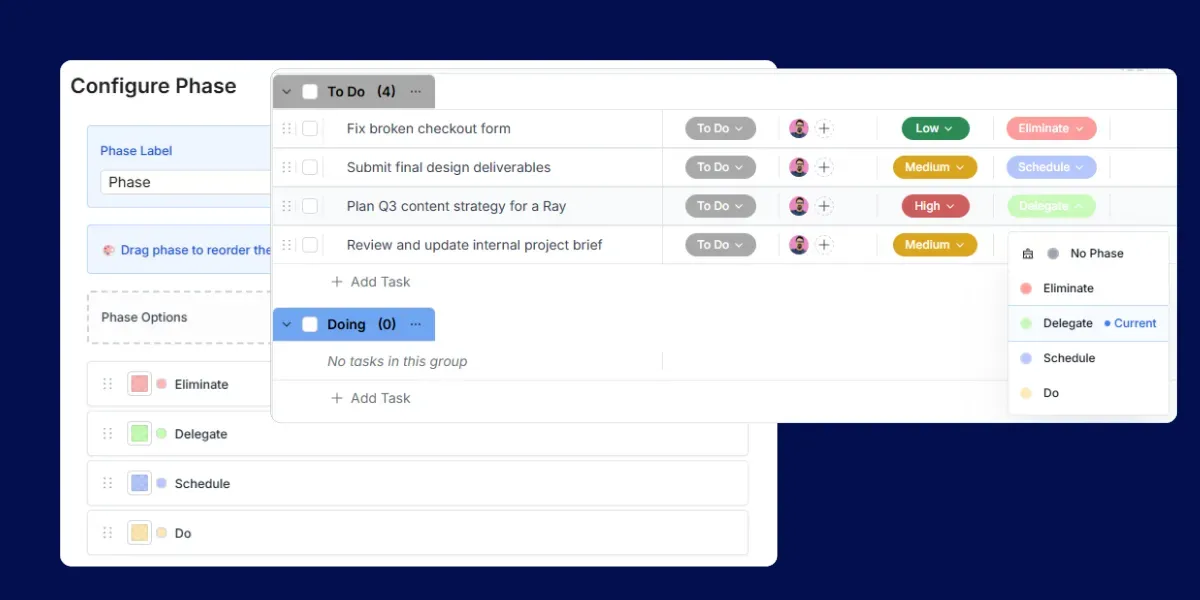
Step 4: View and filter your matrix
Once tasks have a priority and a phase assigned, Worklenz gives you two ways to review the matrix depending on what you need.
Task List View: Stay in the list view and group by Phase or Priority. This gives you a clean breakdown of tasks under each quadrant or priority level. Because the four priority levels map directly to the four quadrants, grouping by priority alone gives you a quick matrix read. You can then filter by Status to see only the tasks that are in progress, to do, or completed. This is useful when you want to quickly check what still needs action in the Do quadrant or which tasks in the Schedule quadrant have not been started yet.
Board View: Switch to the Kanban board and group by Phase. Your board now shows four columns, one for each quadrant. This is a better view when you want a visual picture of how the workload is spread across the team. Apply the Status filter here as well to hide completed tasks and focus only on what is still open.
Use both views together. Start your day in list view to check priorities, and use board view in team reviews to spot where tasks are piling up or stalling.
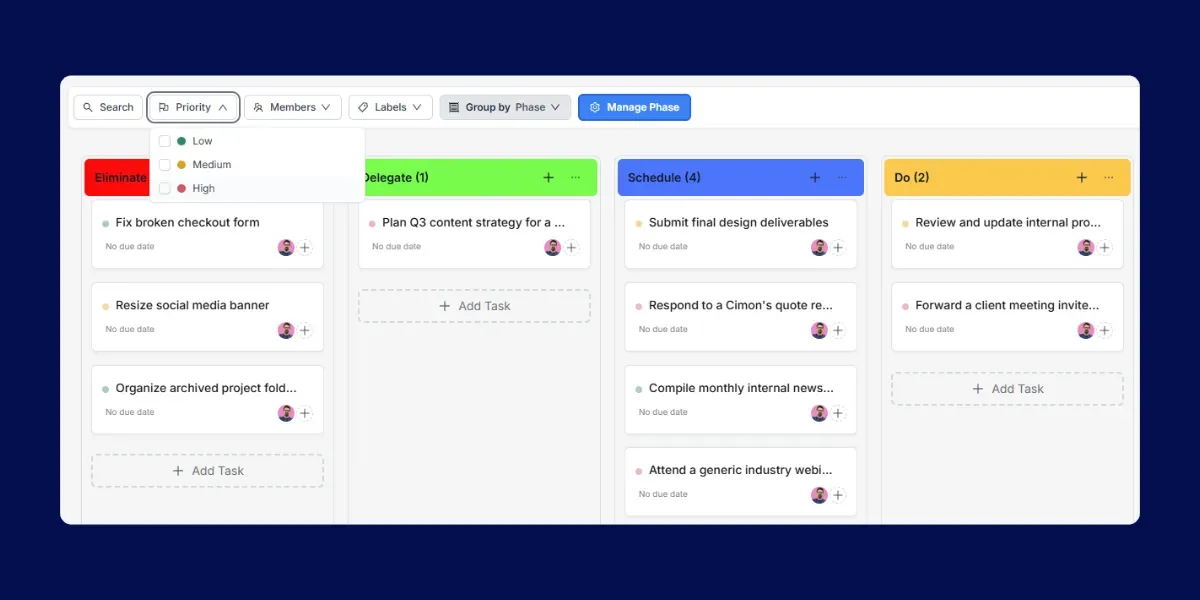
Step 5: Review and move tasks regularly
The matrix only works if it stays updated. Make it part of your weekly project review. As tasks come in, set the priority first and then assign the matching phase before handing them to anyone. When priorities shift from High to Critical, move the task from Schedule to Do at the same time to keep both signals in sync.
The combination of four priority levels and phase grouping means your team always has two clear signals pointing in the same direction, and no one needs a long status meeting to figure out what to focus on next.
Why this works for agencies
Agency work is reactive by nature. Clients send last-minute feedback. Scope changes. A task you thought was two days out becomes due tomorrow. Without a system, teams drift toward whatever feels loudest.
The Eisenhower Matrix gives your team a shared language. When someone asks “should I drop what I’m doing for this?” the answer is already visible on the board. If it is in the Do column with a Critical priority, yes. If it is in the Schedule column with a High priority, it can wait until the current task is done.
The four priority levels also add resolution that a binary urgent/not-urgent system lacks. A task moving from Medium to High is a signal to watch. A task jumping straight to Critical means someone needs to act now. That gradient is visible without a meeting.
It also helps managers spot delegation gaps. If one person’s Do column has eight Critical tasks and another team member’s Delegate column is empty, the imbalance is visible and fixable.
Ready to try it?
For a quick personal test of the concept, use the Worklenz Eisenhower free tool. No setup required.
For actual project work with your team, build this out in Worklenz Cloud. The phase and priority setup described above takes about ten minutes on your first project, and the Kanban view handles the rest.